Wednesday, 18 July 2007

VMWare Server v1.0.3 unable to bridge to wireless network on Vista

I've been trying to test some printing configurations on SLES 10 SP1 but I couldn't get my laptop running Windows Vista Ultimate and VMWare Server v1.0.3 to successfully bridge onto the wireless adaptor.

I could use NAT but then it was difficult to test connectivity to the server.

Having hunted around a bit I found this useful post: Abstract path:VMWare, Wireless Network Adapter and Bridging

This pointed to a VMWare article which allows the Vista adaptor bridging feature to be enabled between the onboard wireless card and the virtual adaptor created by VMware.

Before this fix I could only contact the host wireless IP address, now I can connect to everything but! If anyone knows how to get the VMWare native bridging feature to work, please get in touch.

N.B. The only step missing from the above articles was that you must create a VMware virtual adaptor (I used adapator #2) and delete the DHCP scope for it. Fail to do the and you will leak DHCP onto your wireless network!

SkyAnywhere on Vista?

SkyAnywhere has been running well on my laptop for sometime. I had to flag it to run as an administrator but everything worked.

Today it insisted on downloading an update when I fancied watching a film, but then refused to run it because my machine wasn't running XP.

After a search I found this thread which allowed me to run it again!

Friday, 6 April 2007

How to Display SCL (Spam Confidence Level) in Outlook 2007

Firstly, download and install this Exchange Event Sink as described here:
http://www.ivasoft.biz/showscl.shtml

Secondly, create a custom formula field to display the SCL as described here:
http://forums.microsoft.com/TechNet/ShowPost.aspx?PostID=739718&SiteID=17

The use of Right([Comments],5,2) allows an SCL of -1 through 9 to display correctly.

Of course, if you are using Outlook 2007 with Exchange 2007 you can see the Spam score by looking at the Internet headers - I have not seen a method to display this on the Outlook email list page yet.
http://technet.microsoft.com/en-us/library/bb124595.aspx

Tuesday, 3 April 2007

Downgrade Exchange 2007 B2 to Exchange 2003 SP2

Oh, what fun and games I had.

First I backed up all the mail:
  • Outlook export to PST
  • ExMerge (Hey - It worked on Exchange 2007!)
  • NT Backup of store
Then I removed Exchange 2007 and reininstalled Exchange 2003 - Except it didn't quite go that smooth,

The installation errored saying that it could not install the information store and to check the install log. I found this error message:
mode = 'Install' (61953) CBaseAtom::ScSetup (f:\titanium\admin\src\udog\setupbase\basecomp\baseatom.cxx:842)
Error code 0XC00736B1 (14001): This application has failed to start because the application configuration is incorrect. Reinstalling the application may fix this problem.


Tracing back up the install log found this message:
Interpreting line -- ID:31259 --
CInsParser::ScProcessLine (f:\titanium\admin\src\libs\exsetup\hiddenw1.cxx:1225)
Error code 0XC00736B1 (14001): This application has failed to start because the application configuration is incorrect. Reinstalling the application may fix this problem.


Tracing back futher led to this line:
Copying c:\program files\common files\microsoft shared\cdo\cdoex.dll
Preserving existing copy of c:\program files\common files\microsoft shared\cdo\cdoex.dll

Sure enough, typing "regsvr32 c:\program files\common files\microsoft shared\cdo\cdoex.dll" produced the same error code.

I deleted the copy of cdoex.dll and replaced it with the copy from the Exchange Server 2003 CD and re-ran the regsvr32 command - It worked. I clicked "Retry" and the install completed.

I did receive an error message about the wrong version of mapi32.dll being on the hard disk so I also replaced from the CD too.

Applied Exchange 2003 SP2 and visited Microsoft update to apply some hot fixes and everything appears to be working well.

Blog Outage

Sorry for the outage - I needed to remove Exchange Server 2007 B2 from my test server and return to Exchange 2003 SP2.  This did not go smoothly and I had to do a lot of troubleshooting.
Part of this troubleshooting involved removing IIS (and all the wen sites with it) which brole ASP.NET 2.0 and everthing that relied on it.
Everything is installed and working again (except my ISP connection is down).
Everything should be back to normal.

Thursday, 4 January 2007

Update to CS 2.1 SP2

Updated to CS 2.1 SP2 today. Please let me know of any problems.

Friday, 1 December 2006

ebay Broken?

Good start to the day, I need to buy some stuff for Christmas and ebay seems broken for me:

That's happening for every item so I wonder how much money they are losing?
Managed to see the item a few seconds later, bought it, but got this:

Wednesday, 29 November 2006

Linux NIC Bonding

I had a query on how to setup NIC bonding in RHEL4 so thought I would document it for the blog.

I'll start with a standard server with 2 NICs, eth0 and eth1. Here is the output from 'ifconfig':


The configuration scripts are found in /etc/sysconfig/network/network/scripts:


eth0 is a static interface configured in /etc/sysconfig/network/network-scripts/ifcfg-eth0:


eth1 is a static interface configured in /etc/sysconfig/network/network-scripts/ifcfg-eth1

The hardware is configured in /etc/modprobe.conf:


First we add a config file for bond0, /etc/sysconfig/network/network-scripts/ifcfg-bond0:


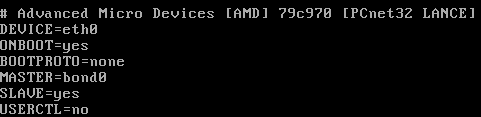
Now we edit /etc/sysconfig/network/network-scripts/ifcfg-eth0:


Now we edit /etc/sysconfig/network/network-scripts/ifcfg-eth1:

Network scripts are now complete in /etc/sysconfig/network/network-scripts:


Add the bonding driver to /etc/modprobe.conf:


Shut down the network with 'service network stop'
Insert the bonding driver with 'modprobe bonding -o bond0 miimon=100 mode=1'
Start the network with 'service network start':

Check the interfaces with 'ifconfig':


Check the routing is ok with 'route -n':


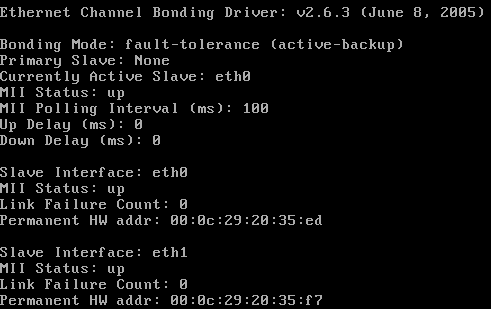
View the status with 'cat /proc/net/bonding/bond0':


Tuesday, 28 November 2006

IE7 Download Corruption

I have a particular file that I needed to download but IE7 consistantly corrupts it. It works fine with Firefox 2 and Free Download Manager. There is a strange dialog at the end of the download. This is a Print Screen capture:


It's not quite accurate because the progress bar is still there on the screen and there is a quarter of a (close?) button at the right hand end of the of where the progress bar would end.


I took a photo because I didn't seem able to Print Screen the dialog properly (bits were missing as above)

Friday, 24 November 2006

The Office Open XML file Building Blocks.dotx cannot be opened because there are problems with contents

I had a real problem with B2 Technical Refresh of Office 2007 not allowing me to insert page numbers, giving me the error message "The Office Open XML file Building Blocks.dotx cannot be opened because there are problems with contents."

Thanks to "PJ-DJ" I found the answer here:
http://forums.microsoft.com/TechNet/ShowPost.aspx?PostID=932036&SiteID=17

Step 1: Close Word and Outlook if you are using Word as your email editor.
Step 2: Go to C:\Documents and Settings\(Username)\Application Data\Microsoft\Document Building Blocks\1033 and delete the Building Blocks.dotx file.
Step 3: Open Word. CLOSE IT AGAIN. Wait a few seconds.
Step 4: Open Word. On a blank document, Insert Page Numbers. Check your C:\Documents and Settings\(Username)\Application Data\Microsoft\Document Building Blocks\1033 folder. A new Building Blocks.dotx file should have been created.
Step 5: There is no Step 5. You should be fine now.


I really must get that licensed copy of Office 2007 installed - But I'm not sure if Sharepoint designer is released?

Thursday, 23 November 2006

Gissa Job?

Things aren't going too well at work - The direction the company wants to take and the direction I want to take do not match!

Anyone need a technical type of guy?

I prefer to work around the Ipswich, Suffolk area and you can find a general purpose CV in PDF format here.

If you need it in another format, give me a shout.

Sunday, 12 November 2006

CS 2.1 SP 1 Fixed Comment Review Problem

I've just applied CS 2.1 SP1 and it fixed my comment review problem described earlier. [:D]

Saturday, 28 October 2006

CS2.1 Review Comments does not display correctly in IE7

I have to review comments before I allow them to be posted on the site because, as all blog owners know, you get a lot of spam comments. IE7 doesn't want to let me review them in lower resolutions. I get a cut off review line with no horizontal scroll bar. See what I mean here.

Firefox 2.0 fares better. It wraps the comment line and lets me scroll the windows horizontally if I have a long comment title. The colours are a little bit weird but I can live with that. See how Firefox 2.0 copes here.

I've posted a bug to the support forum so lets see how that does.

Sunday, 15 October 2006

Vista and Outlook 2007 - Turn off the reading pane

I really don't get on with the Outlook 2007 reading pane because it uses up to my screen real estate on my laptop. I knew that you can turn it off with the "/nopreview" switch at the command line but you can't edit the special icon to change the startup command line.

I did a bit of digging and found that by selecting the "Command Line" option from the Task Manager "View > Select Columns..." entry you could see the actual command lines used to start processes. I could see that Outlook was already starting with the "/recycle" switch to reuse Outlook instances so I set out to find this in the registry.

To start Outlook with the "/nopreview" switch I edited the following registry entry. (Insert standard disclaimer here!) The registry key was:
HKLM\SOFTWARE\Clients\Mail\Microsoft Outlook\shell\open\command
REG_SZ: "C:\PROGRA~1\MICROS~3\Office12\Outlook.exe" /recycle /nopreview

Sunday, 1 October 2006

Exchange Server 2007 Beta2 Maximum Mail Stores

I was trying to work out the limits of the current beta of Exchange 2007 in terms of storage groups and mailbox stores and through experimentation I discovered that they are:
  • Maximum Storage Groups: 50
  • Maximum Mail Stores per Storage Group: 5
I guess that's a grand total of 250 mailbox stores then. That's a massive improvement over Exchange 2003!

Grant full mailbox permissions in Exchange 2007 Beta2

Final step upon upgrading the test server to Exchange 2007 Beta2 was to give me full access to all the mailboxes. It's another Power Shell task and I managed to find the syntax at the Microsoft Exchange Team Blog.

Add-MailboxPermission mailbox -AccessRights FullAccess -user user

This gives user full access permisions to mailbox.

Exchange 2007 Beta2 - Allow hub connector to receive unauthenticated SMTP mail

You need to set the permissions to allow Anonymous users to submit mail. This is not in the GUI so you must use the Power Shell.

1. Set the permission:
set-receiveconnector 'Default CHEF' -PermissionGroups:"ExchangeUsers,ExchangeServers,ExchangeLegacyServers,AnonymousUsers"Replace CHEF with your Exchange server name!

2. Verify the permission:
get-receiveconnector | format-listSchema: Microsoft.Exchange.Data.Directory.SystemConfiguration.ReceiveConnectorSchema
AuthMechanism: Tls, BasicAuth, BasicAuthPlusTls, ExchangeServer
Banner:
BinaryMimeEnabled: True
Bindings: {0.0.0.0:25}
ChunkingEnabled: True
DefaultDomain:
DeliveryStatusNotificationEnabled: True
EightBitMimeEnabled: True
EnhancedStatusCodesEnabled: True
ExternallySecuredAsPartnerDomain:
Fqdn: mail.thefoleyhouse.co.uk
Comment:
Enabled: True
ConnectionTimeout: 00:10:00
ConnectionInactivityTimeout: 00:05:00
MessageRateLimit: unlimited
MaxInboundConnection: 5000
MaxInboundConnectionPerSource: unlimited
MaxInboundConnectionPercentagePerSource: 100
MaxHeaderSize: 64KB
MaxHopCount: 30
MaxLocalHopCount: 3
MaxLogonFailures: 3
MaxMessageSize: 10MB
MaxProtocolErrors: 5
MaxRecipientsPerMessage: 5000
PermissionGroups: AnonymousUsers, ExchangeUsers, ExchangeServers, ExchangeLegacyServers, CustomPipeliningEnabled: True
ProtocolLoggingLevel: None
RemoteIPRanges: {0.0.0.0-255.255.255.255}
RequireEHLODomain: False
RequireTLS: False
Server: CHEF
SizeEnabled: True
TarpitInterval: 00:00:05
AdminDisplayName:
ObjectCategoryName: msExchSmtpReceiveConnector
ExchangeVersion: 0.1 (8.0.535.0)
CurrentObjectVersion: 0.1 (8.0.535.0)
Name: Default CHEF
DistinguishedName: CN=Default CHEF,CN=SMTP Receive Connectors,CN=Protocols,CN=CHEF,CN=Servers,CN=Exchange Administrative Group (FYDIBOHF23SPDLT),CN=Administrative Groups,CN=The Foley House,CN=Microsoft Exchange,CN=Services,CN=Configuration,DC=thefoleyhouse,DC=ad
Identity: CHEF\Default CHEF
Guid: 0675a1d2-9c19-4068-af33-782d1c27f562
ObjectCategory: thefoleyhouse.ad/Configuration/Schema/ms-Exch-Smtp-Receive-Connector
ObjectClass: {top, msExchSmtpReceiveConnector}
OriginalId: CHEF\Default CHEF
WhenChanged: 01/10/2006 19:58:31
WhenCreated: 30/09/2006 00:19:26
ObjectState: Unchanged
OriginatingServer: chef.thefoleyhouse.ad
IsReadOnly: False
Id: CHEF\Default CHEF
IsValid: True

How to set recipent email addresses in Exchange 2007 Beta2

To set recipient email address policy, do the following:

1. In the Exchange Management Console, navigate to 'Organization Configuration' > 'Hub Transport' > 'Email Address Policies'. Here you will see the default policy and you can select 'Edit' on the left hand side of the MMC console.


2. We are editing the default policy so just click 'Next'.


3. Again, just select 'Next' because we are editing the default policy for all objects.


4. Now edit the default email address. Because mine is set as an alternate UPN I can click the SMTP address and click 'Edit'.


5. As the email address I want to use is an alternate UPN and can select it from the drop down box and select 'OK'.


6. Click 'Next' to apply changes immediately.


7. Click 'Edit' to make the changes.


8. This dialog shows the Power Shell script along with any warnings. I have an invalid recipient name from my old Exchange 2003 organisation that I must get round to changing! ;-)


9. All done and applied. I like how the 'True' display lets you know that you did apply the policy.

Creating an Internet send connector in Exchange 2007 Beta 2

Before you can send mail to the internet with a single server you have to make a connector for your mail transport hub role. The remote domain should already be configured to '*' for the Internet but create a send connector like so:

1. Open up the Exchange Management console and select Organization Configuration > Hub Transport and click 'New Send Connector...' underneath Actions, Hub Transport on the right hand side.


2. You should now get the 'New SMTP Send Connector' dialog box. Enter 'Internet' for the name and leave the intended use at 'Custom' for this connector.


3. Next, for the Domain enter '*' and ensure that you leave 'Include all subdomains' selected.


4. Next, choose if you are going to use a smarthost or MX records to deliver mail. Because a lot of administrator block dynamic IP addresses and this test server has a dynamic address I have elected to use my ISP mail server. They relay mail from my IP address and I have used the DNS name of the server to simplify the connection.


5. Next, if you need to authenticate to your smart host, put the details in here. I don't.


6. Next, select the server that will send mail over the connector. If you only have one server it should already be added.


7. Next, verify the settings.


8. Next, create the connector. Beta 2 lists the Power Shell command you could have used to create this connector from the command line.


9. All done.

Updating a single Exchange 2003 server to Exchange 2007 Beta 2

I've done this on my test server and there are a couple of problems you have to deal with:
  • The databases are not compatible. Exchange 2003 uses STM and EDB files with 5MB logs whereas Exchange 2007 uses just an EDB file with 1MB logs. There may also be a difference on how data is organsied internally. I have seen reports of 4KB vs 8KB database pages.
  • Exchange 2007 really needs an edge server role for secure deployment. If you're going to use a single server then you'll have to use the hub transport server to send and receive internet email. Allthought his works, it is not a reccommended scenario.
The steps I took to upgrade my Exchange server then were as follows.
  1. Backup everything.
  2. Backup everything again using a different method. :)
  3. Extract the mail from the old Exchange 2003 server using a tool such as ExMerge.
  4. Disable\Delete all old mailboxes from mail stores.
  5. Uninstall Exchange 2003.
  6. Install Exchange 2007 using the mailbox, client access and hub transport roles.
  7. Set recipient policy to ensure correct email addresses are allocated.
  8. Re-enable mailboxes.
  9. Test internal mail connectivity using owa.
  10. Import mail. As it was a small test organisation and I had removed the old server I used Outlook for each user to import thier own mail. If I had a new server then I could have installed it into the Exchange 2003 organisation and used the move mailbox wizard.
  11. Create an SMTP send connector.
  12. Allow unauthenticated SMTP connections on the incoming (default) SMTP connector.
  13. Setup any mailbox permissions you wish to have.
It now seems to be working. Watch out for more details on steps 7,11,12 and 13. Some of this can be done using the GUI, some using Power Shell.